Security
Security is how you sign in to Gemmein. It is yours, not your app's, so it is the same on every app you own. Add an authenticator app for a second code at sign-in, and see the browser you're signed in on.
Steps
Overview
Open Settings, then Security. Authenticator app says whether signing in asks for a second code, and This session shows the browser you're signed in on.
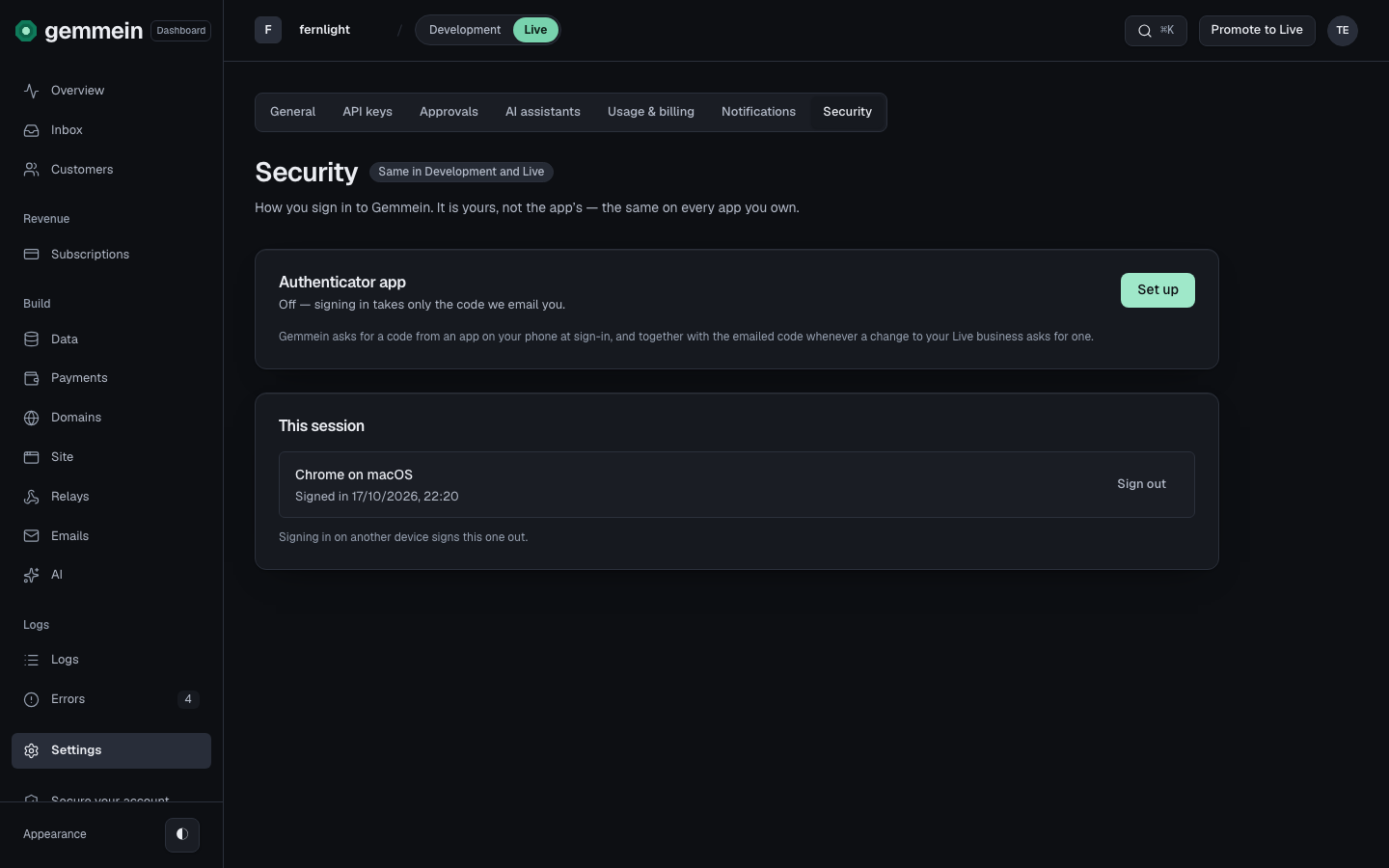
Authenticator app
Choose Set up and scan the square code with an authenticator app on your phone, such as Google Authenticator, 1Password or Authy. Can't scan? Type the setup key into the app instead.
Type the 6-digit code the app shows and choose Turn on. You then get ten recovery codes: each works once if you lose your phone. They are shown only once, so copy or download them and keep them safe.
Once it's on, Gemmein asks for a code from the app when you sign in, and together with the code we email you whenever a change to your live business asks for one.
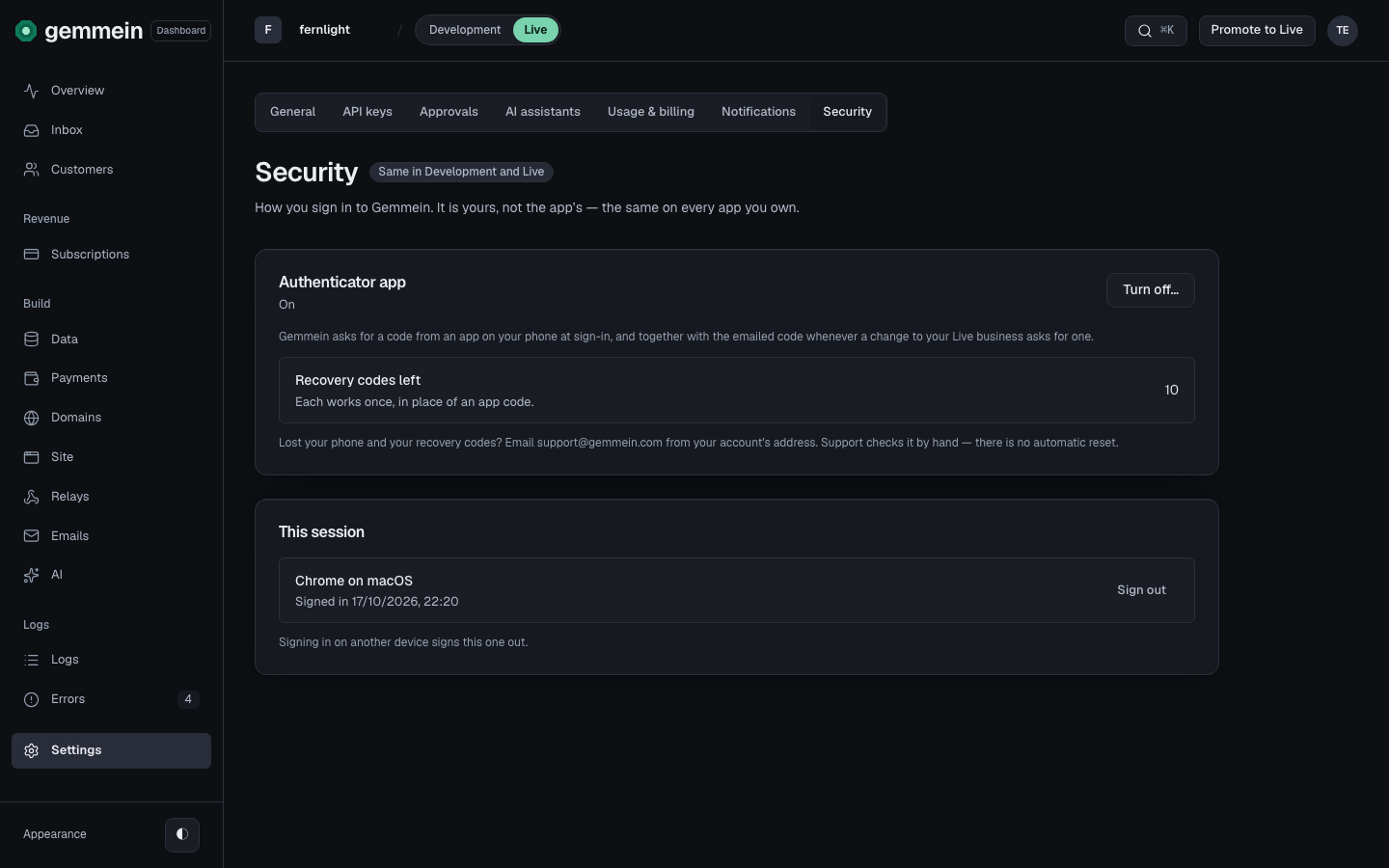
Choose Turn off… and enter a code from the app, or a recovery code. We email you when it's turned off, and it shows in Logs.
Lost your phone and your recovery codes? Email support@gemmein.com from your account's address, and support checks it by hand.
This session
You're signed in on one browser at a time: signing in on another device signs this one out. Choose Sign out to end it now.
Errors
That code didn't work. Use the newest code from your authenticator app — each one works once — or a recovery code.
The code changes every 30 seconds. Type the one your app shows now.
How sign-in and sessions work: Sign-in.
Thanks for telling us.
Thanks for telling us.
Last updated