Get started
Get started lists every step to go live, with the status of each. It also shows how your coding agent signs in, the name the people using your app see, and a prompt that points your coding agent to the SDK instructions. There is no key to copy.
Steps
Overview
Open Get started to see every step and its status. Amber marks what going live still waits on, and the count above it says how many are left.
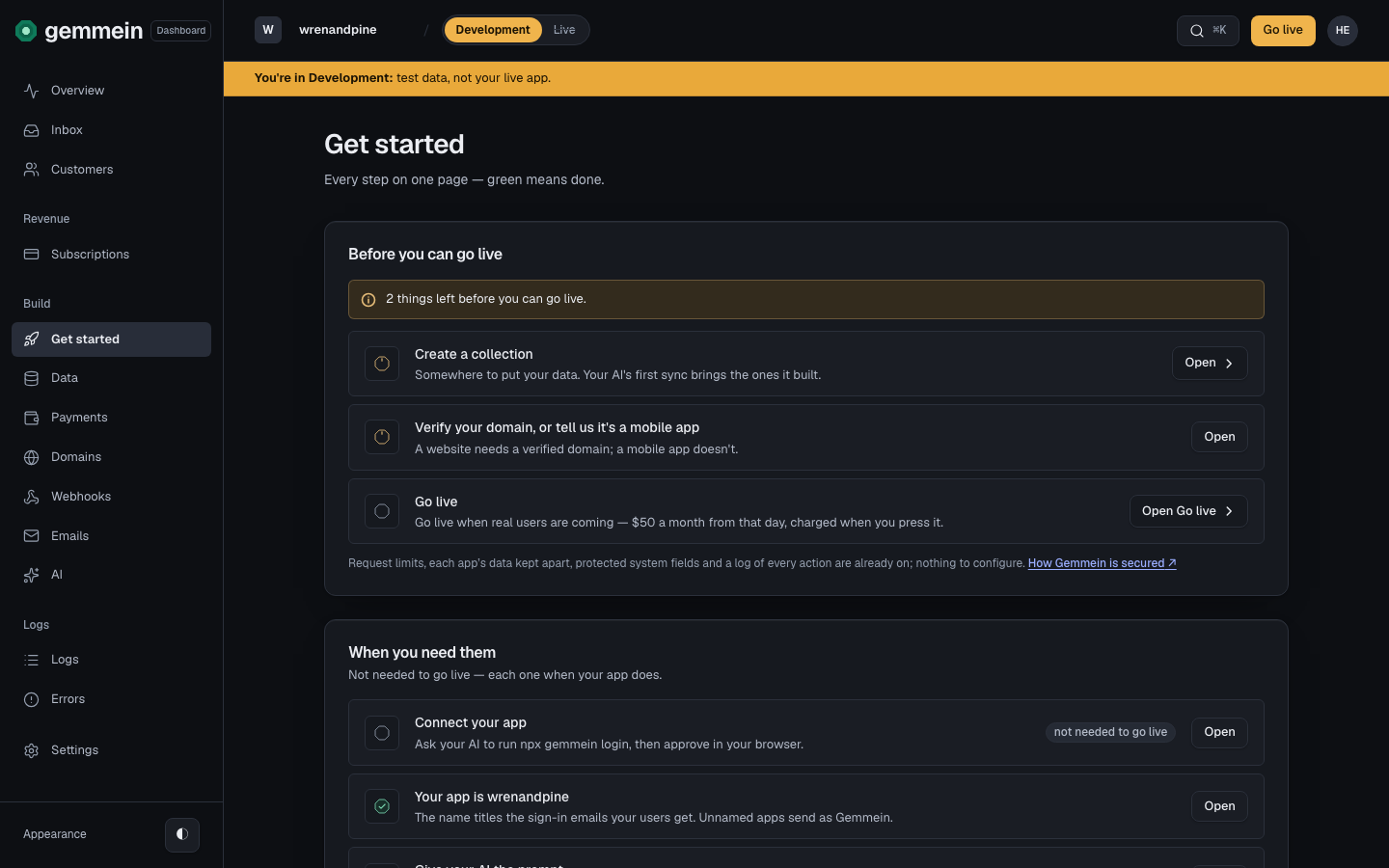
Each step opens in place under its own row. Verify your domain asks where your app lives: on the web, on phones or both. A phone-only app needs no domain; for a website, Add a domain opens Domains.
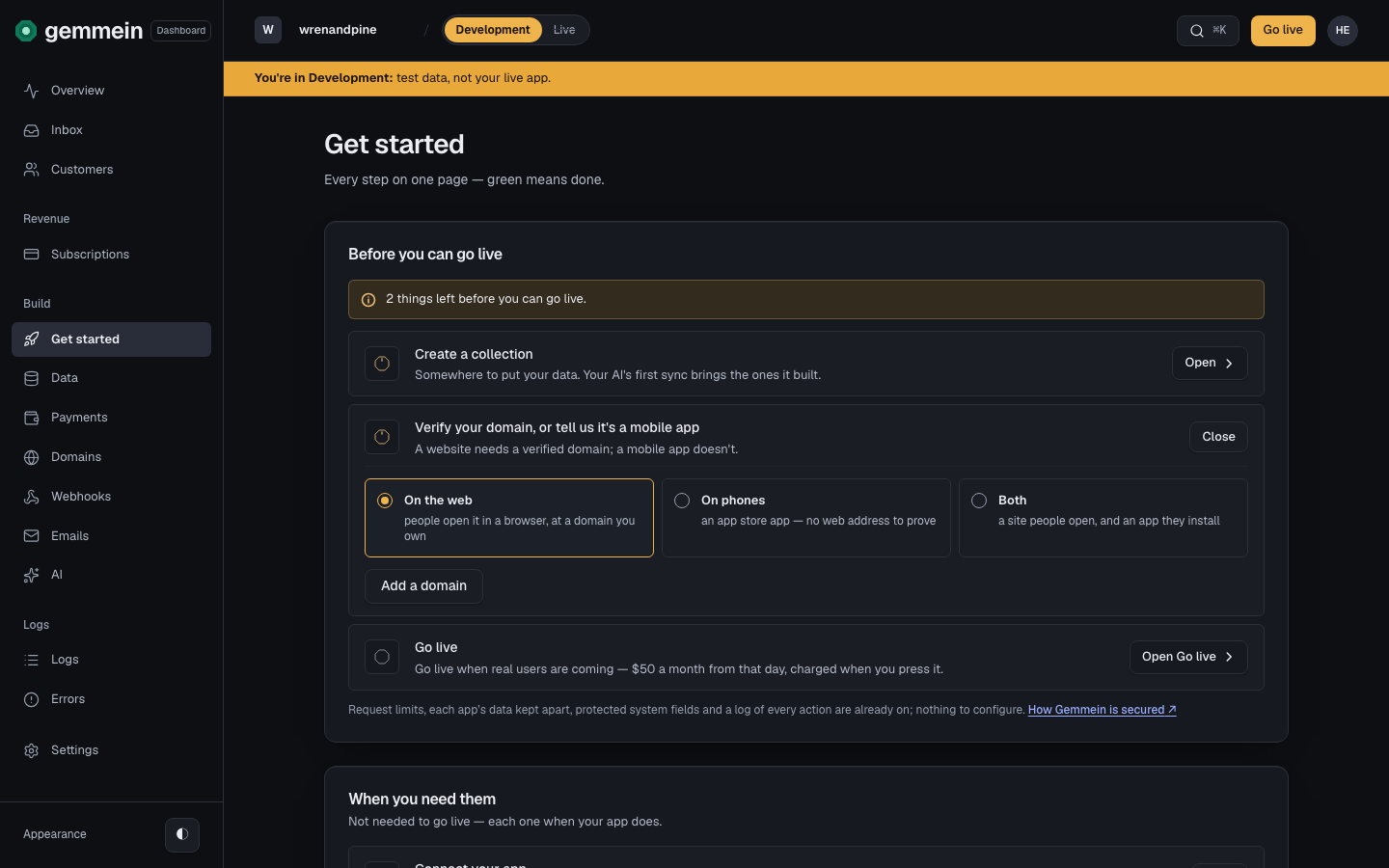
Connect your app
Open Connect your app to see how your coding agent signs in. Ask it to run npx gemmein login, then press Approve on the page it opens in your browser. It stays signed in to Development for 24 hours.
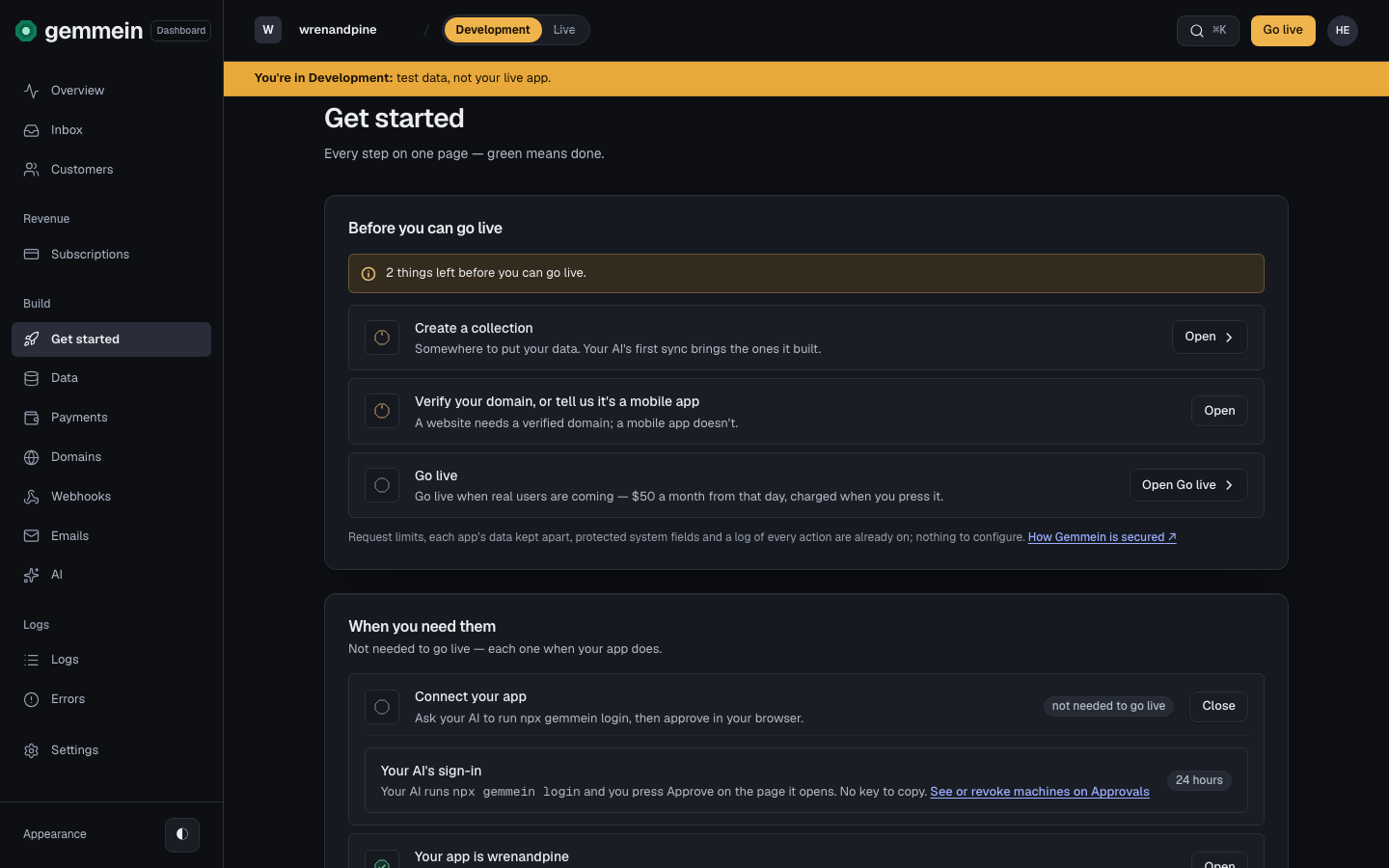
There is no key to copy. The CLI saves your app key in your project, and your coding agent wires it in. The key is on API keys for reference. See or revoke a signed-in machine on Approvals.
App name
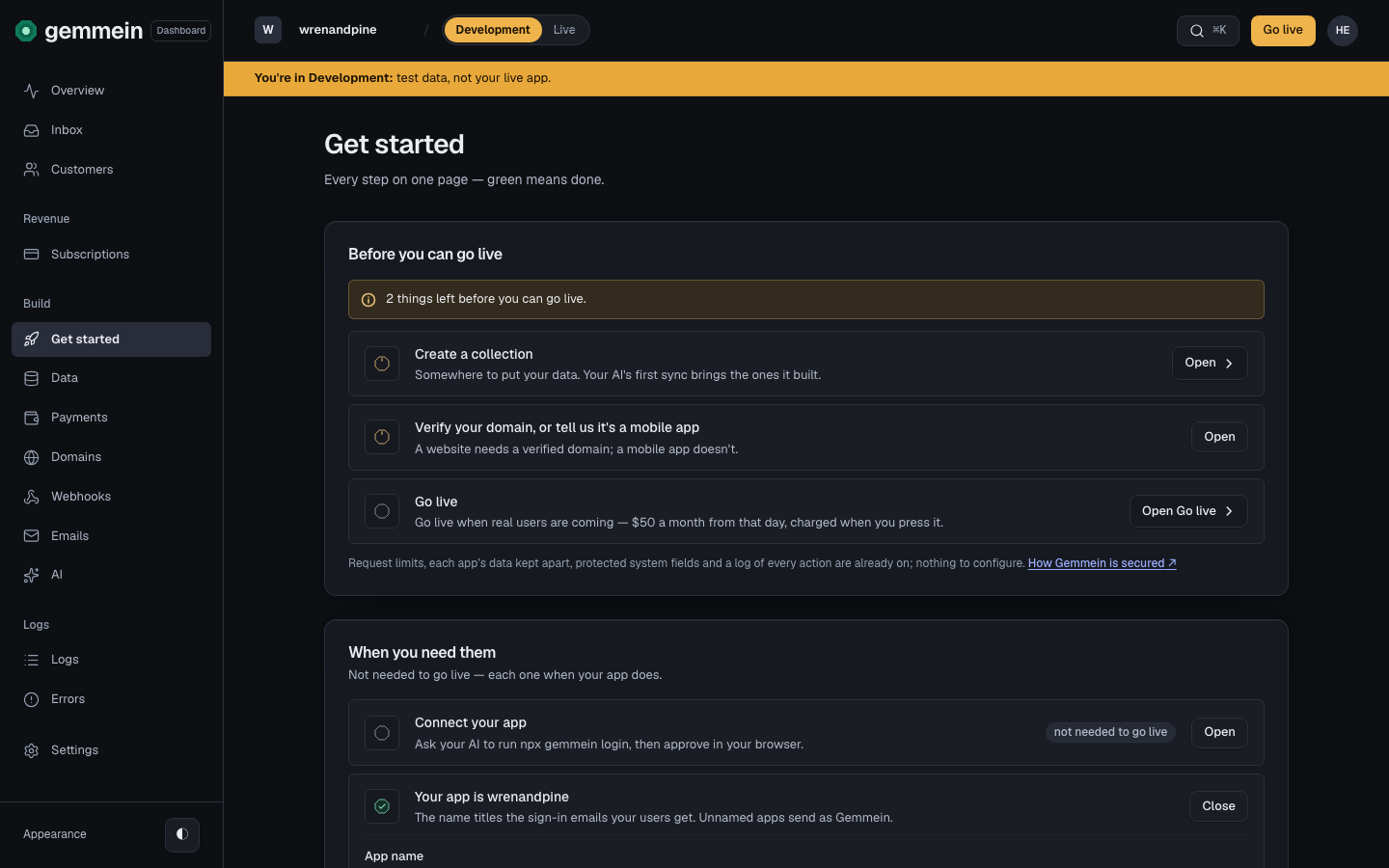
Open the name step to rename your app. The name is the title of the sign-in emails the people using your app receive.
Give your AI the prompt
Open Give your AI the prompt and copy it into Claude, Cursor or Codex. It points your coding agent to the SDK instructions and tells it to sign in with npx gemmein login.
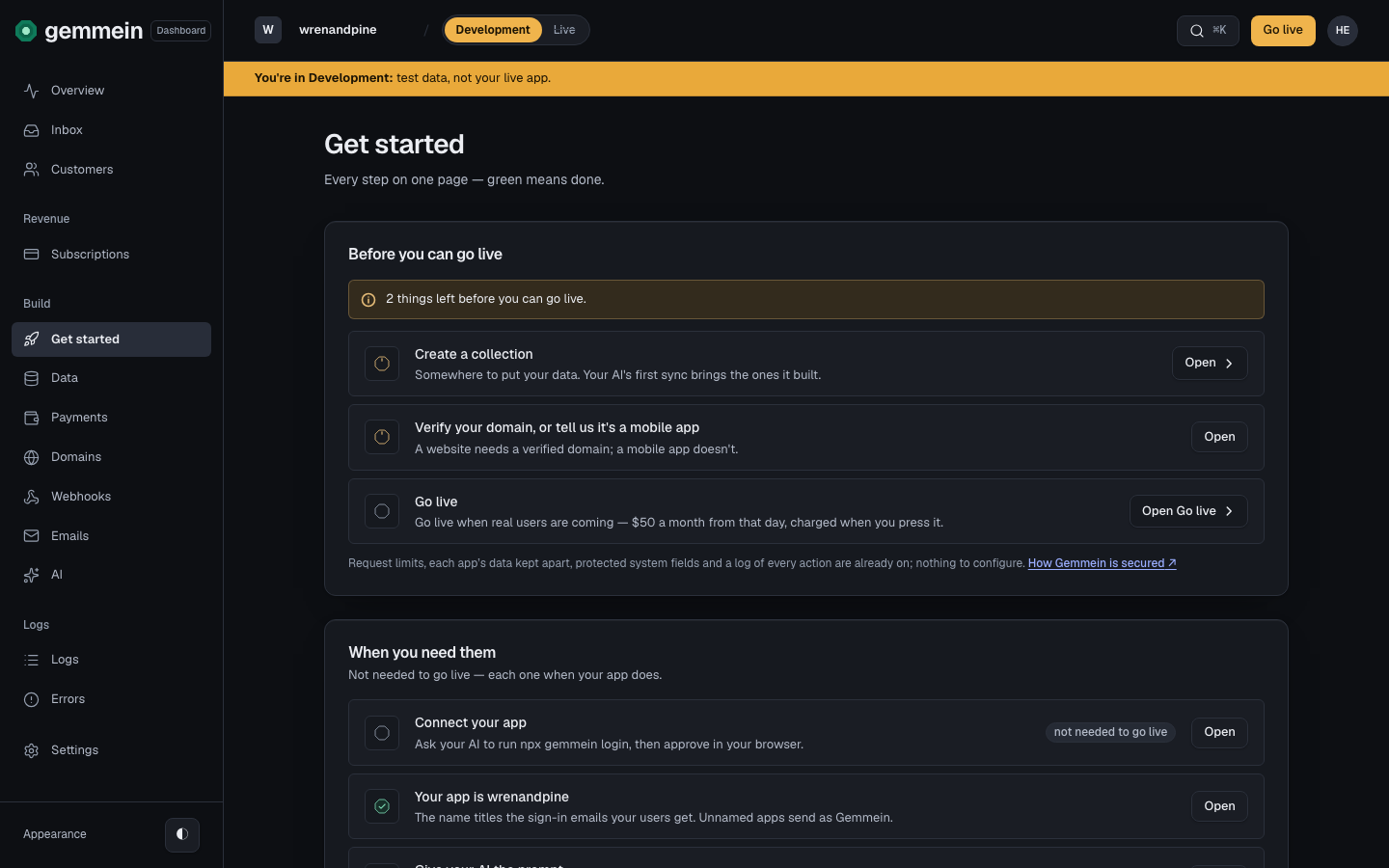
The steps after it take you the rest of the way: a collection, your domain, sending from your domain, payments, and going live.
Errors
A name is letters, numbers, spaces, hyphens and underscores, starting with a letter or number, up to 63 characters.
The name is printed in every sign-in email the people using your app receive, so it keeps to characters every inbox shows the same way.
Your first app, from sign-in to a working app: Quickstart.
Thanks for telling us.
Thanks for telling us.
Last updated