Dashboard guides
One guide for each page of the dashboard, with a screenshot of each step, the errors the page shows and why, and a link to the matching docs page.
Getting around
Every page shares the same sidebar, top bar and layout.
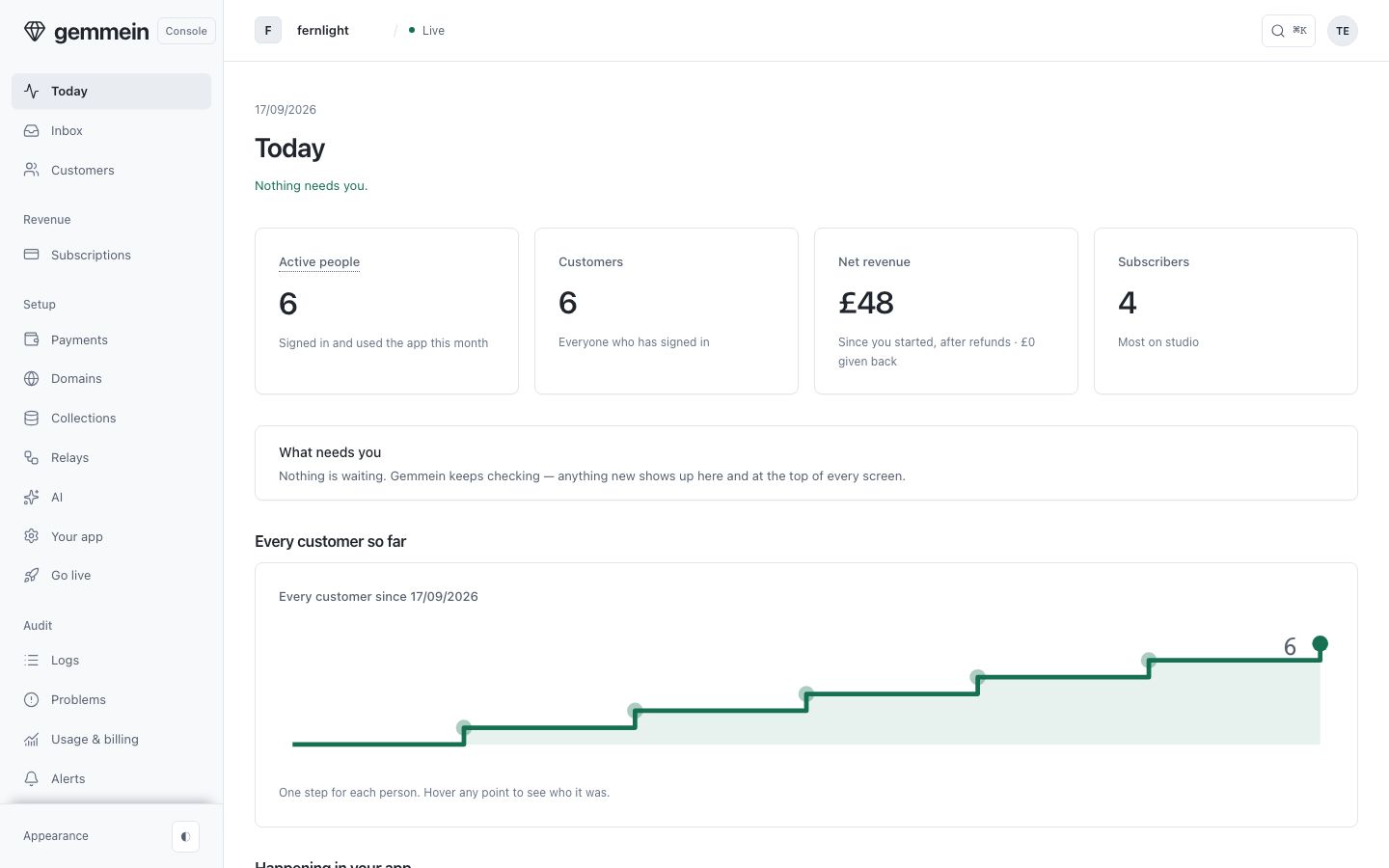
The sidebar
- Today: the first page you see. It shows what's left before you go live, then how your app is doing.
- Inbox: replies from the people using your app, and your answers.
- Customers: everyone who has signed in, with a page for each person.
- Revenue: who pays you, and for what.
- Setup: payments, your domain, your data, relays, AI, your app's settings, and going live.
- Audit: what happened, what went wrong, what you're billed, your alerts, and your secret keys.
Today opens first, every time you sign in.
Development and Live
A switch in the top bar moves the dashboard between Development, where you build with test data, and Live, the app your customers use — pages live at /dev/… and /live/…. Before you go live, Live is greyed out with "Go live first" and Development is the only environment there is. After you go live, the dashboard always opens in Live, and switching to Development asks you to confirm every time — Development shows a full-width banner and an amber accent so the two are never mistaken for each other. Your app's name, the Gemmein bill, Domains and the Inbox are the same in both. Any confirm dialog names its environment — "Confirm in Live" or "Confirm in Development" — and a Live confirmation adds one line: this changes your live app, your customers see it. You go live from the Go live page.
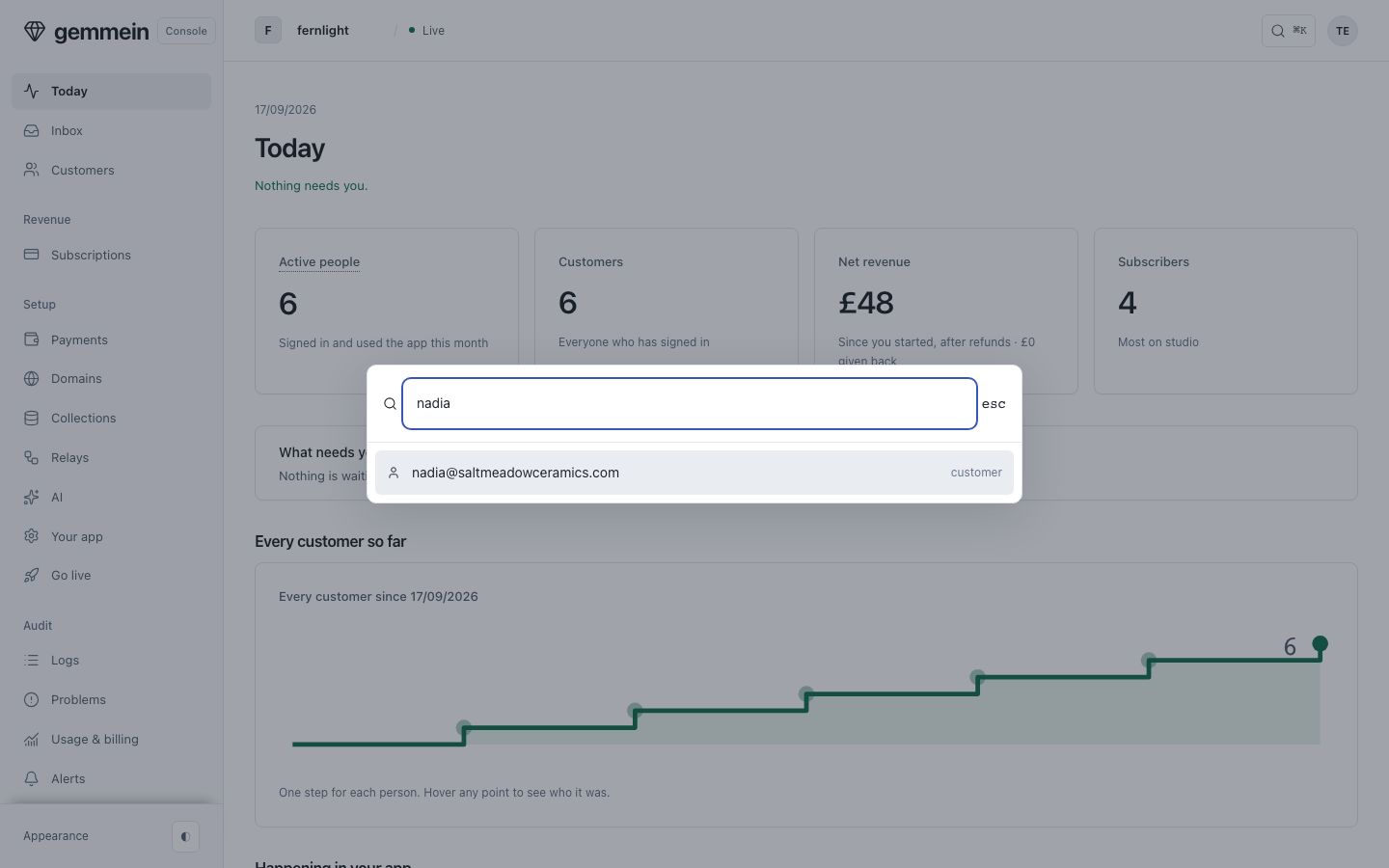
Search everywhere
Press ⌘K on any page to search the whole dashboard. Part of a page's name jumps to it (keys finds Secret keys), and an email finds a person or a conversation they sent you. Escape closes it.
Appearance
Your initials, top right, open a short menu with appearance (light or dark) and sign out.
How every page works
Open a page from the sidebar and you land on a list. Choose a row to open its own page, which always starts with a way back to the list. You act on a row from its own page. Forms ask one question per screen, with a progress bar across the top.
On a phone
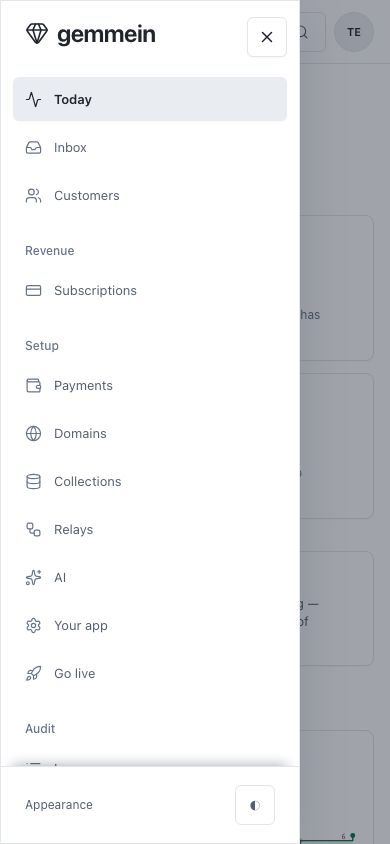
The sidebar becomes a panel behind the menu button, top left.
Pages
Today, Inbox and Customers
- Today: before you go live, what's left and the next step. After, whether anything needs you, how many people use your app and what it has earned.
- Inbox: read replies to your app's emails and answer them from your own sender.
- Customers: a person's summary, their credits (the ledger and a grant), their access, their activity, and managing them.
Revenue
- Subscriptions: who pays for what, a correction, a comp, a cancellation.
Setup
- Payments: plans (how each is sold, credits each period, carry-over) and products.
- Domains: your web domain and your sending domain, their DNS records, and the sender names.
- Collections: a collection, its safety rule, its settings and what unlocks it.
- Records: search, filter and total a collection's records, open one, or add a new one.
- Relays: a relay from a template, its page and events, editing the definition, pausing.
- AI: provider keys, the AI tools you price, aliases, runs and calls.
- Your app: the app's name, its keys for the browser and the CLI, and the prompt for your coding agent.
- Go live: what's left before you go live and what goes live with your app. After that, promote new collections and fields from development.
Audit
- Logs: who did what, in your app and on your account.
- Problems: writes Gemmein refused from your live app, grouped by error, with the exact error your app received.
- Usage & billing: what Gemmein costs you, your active people, the band your bill follows once you're live, and holding that band.
- Alerts: what Gemmein tells you about, and where.
- Secret keys: a secret key, its page and usage, rotating and revoking.