People
People lists everyone who has signed in to your app, with a sheet for each person. Open someone to see their plan, credits, access, records and activity — and to give them credits or a plan by hand.
Steps
Overview
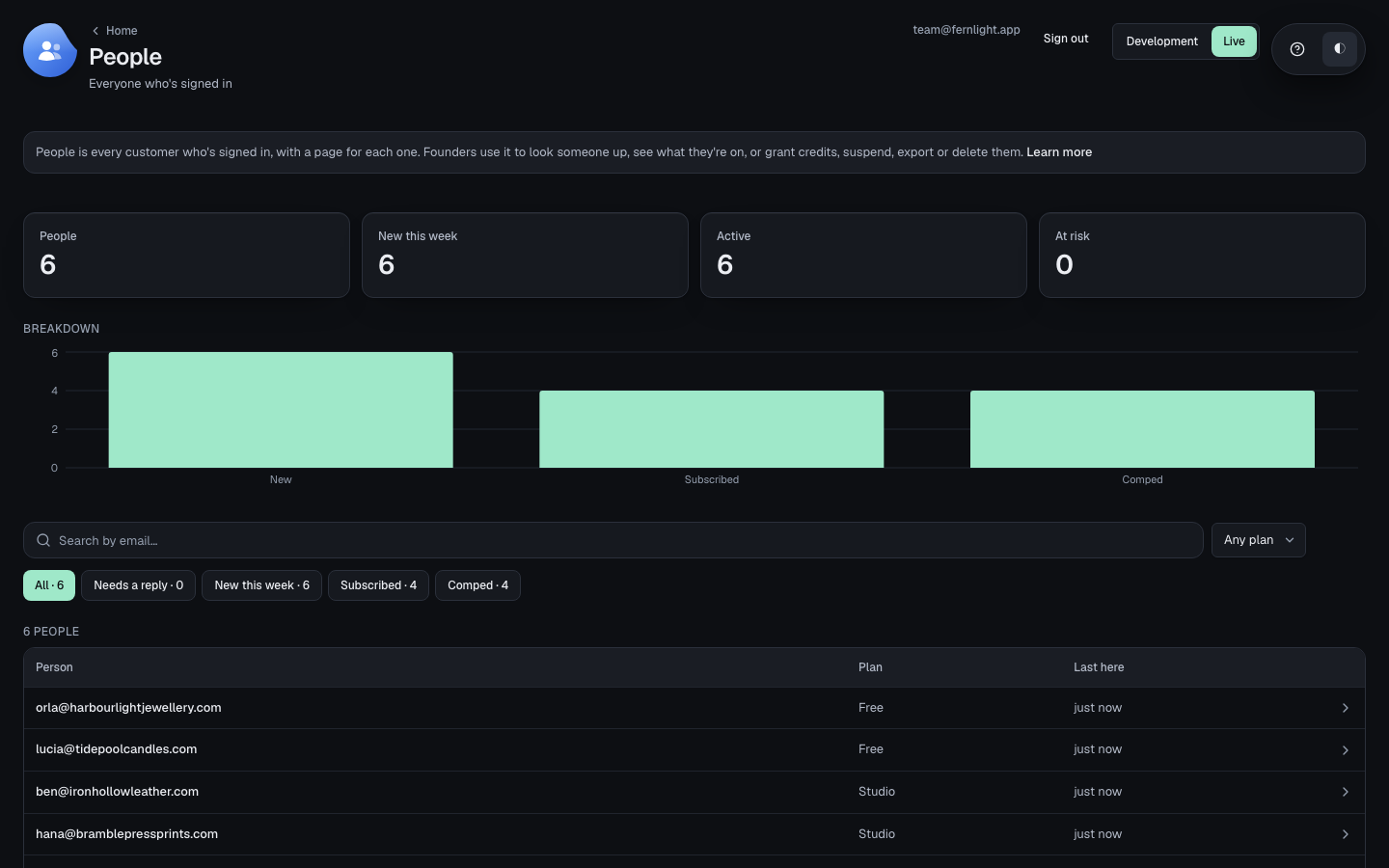
Open People to see everyone who has signed in to your app, with their plan and last sign-in.
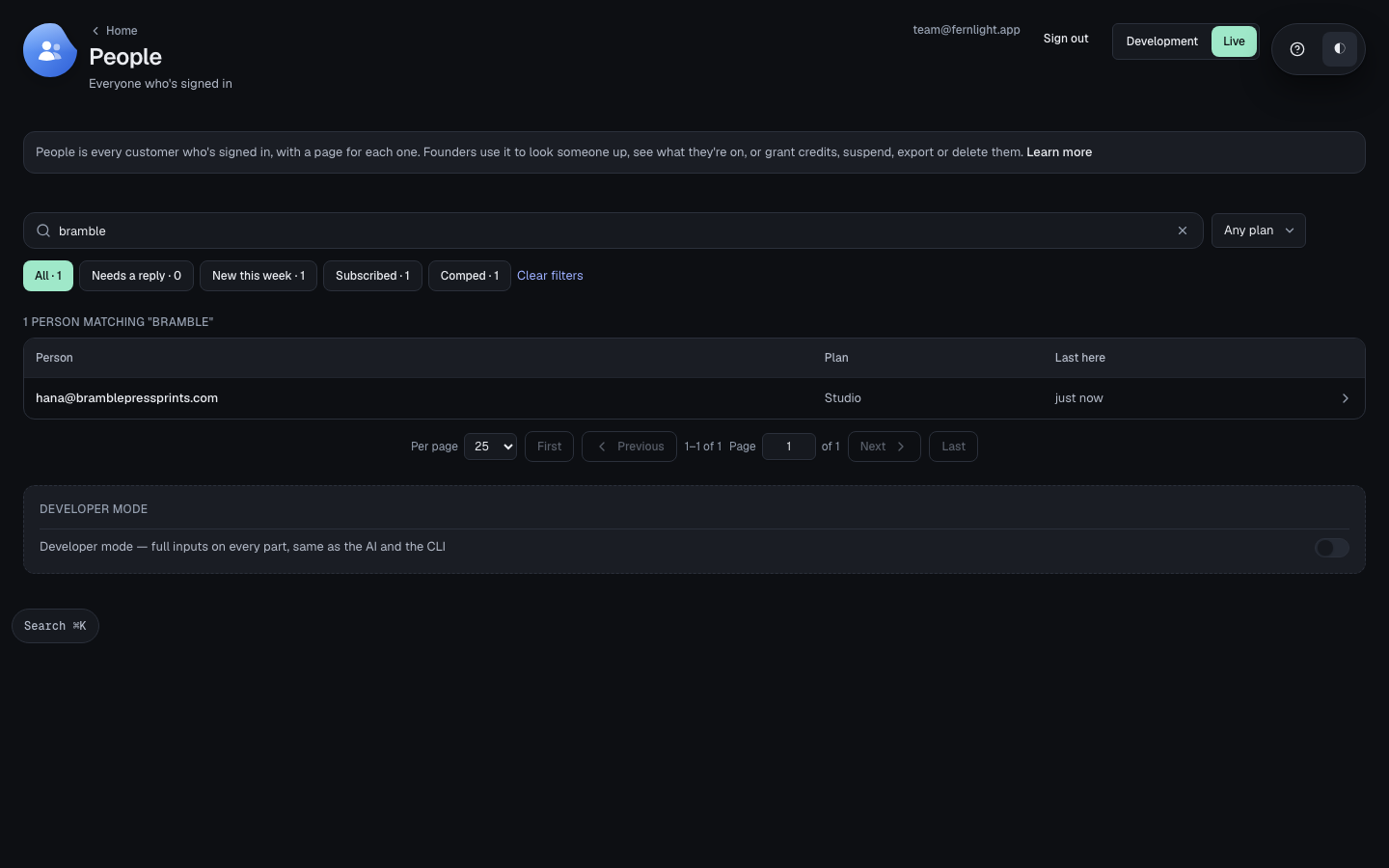
Search by email to find one person.
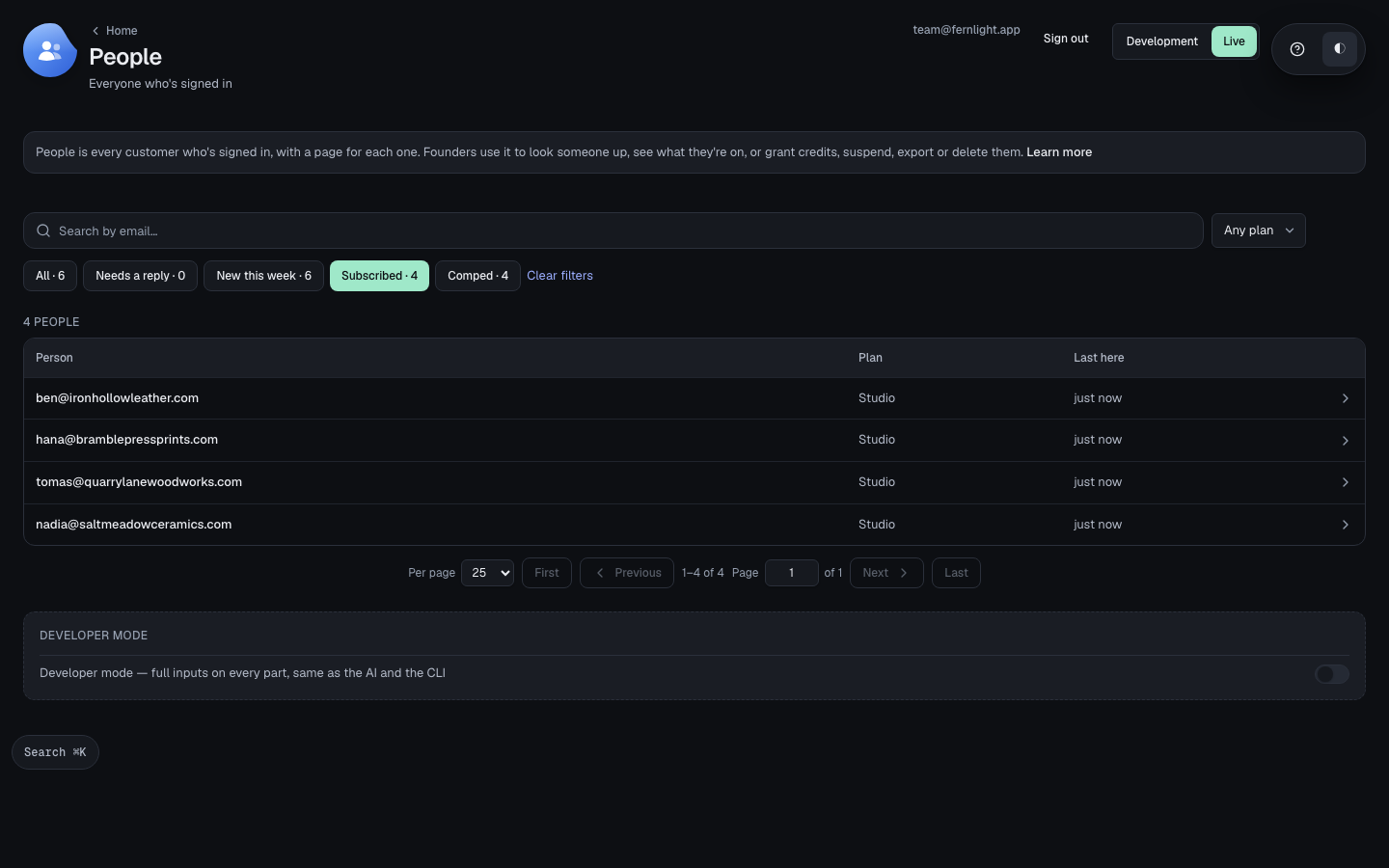
Choose Subscribed, New this week or another tab to see only the people in that state — Cancelled joins them once someone's subscription ends.
One person
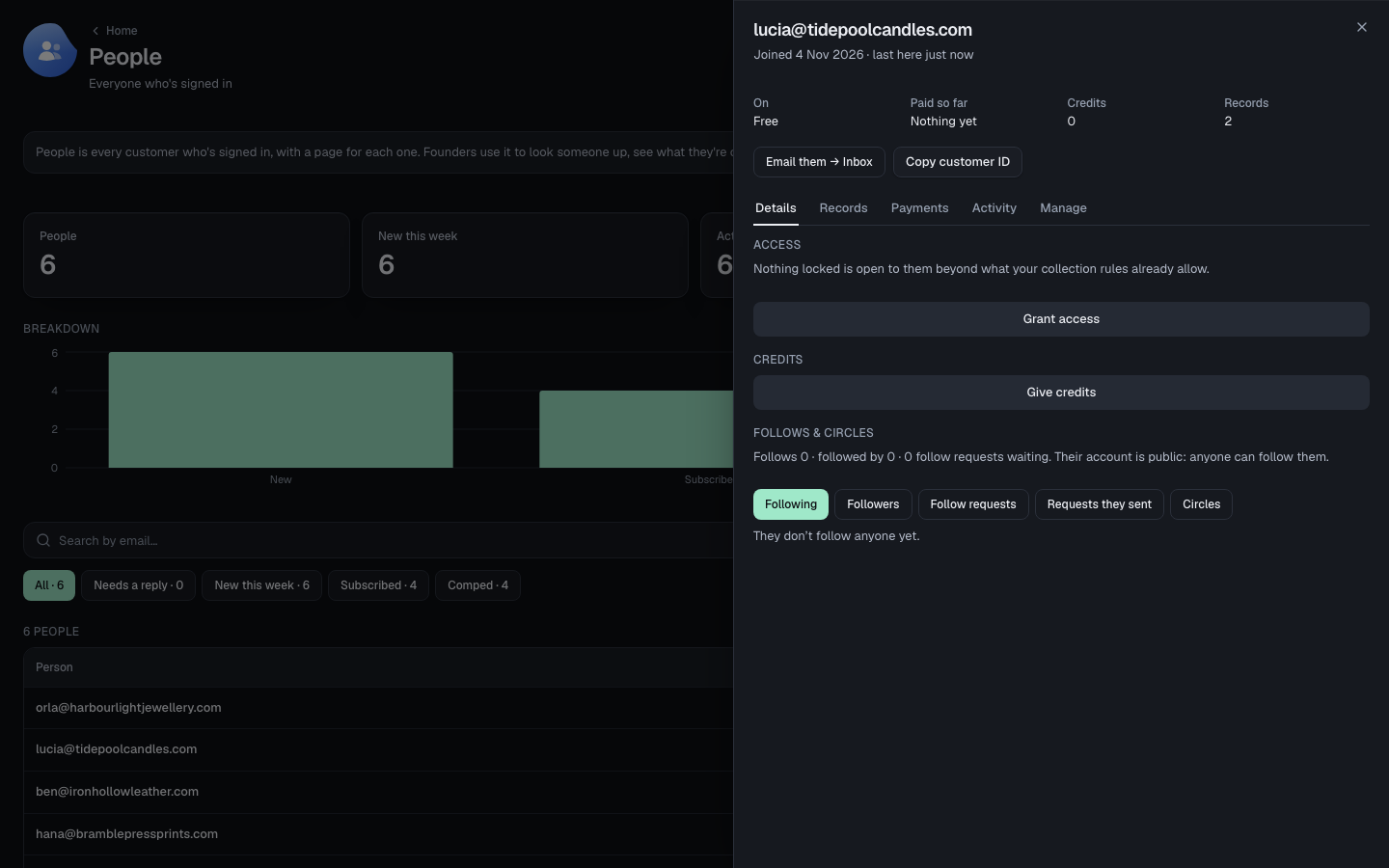
Open a person for their plan, what they've paid and their credits at the top, then Details, Records, Payments, Activity and Manage below.
Details
Under Access, choose Grant access to put them on a plan or product by hand, with no payment recorded.
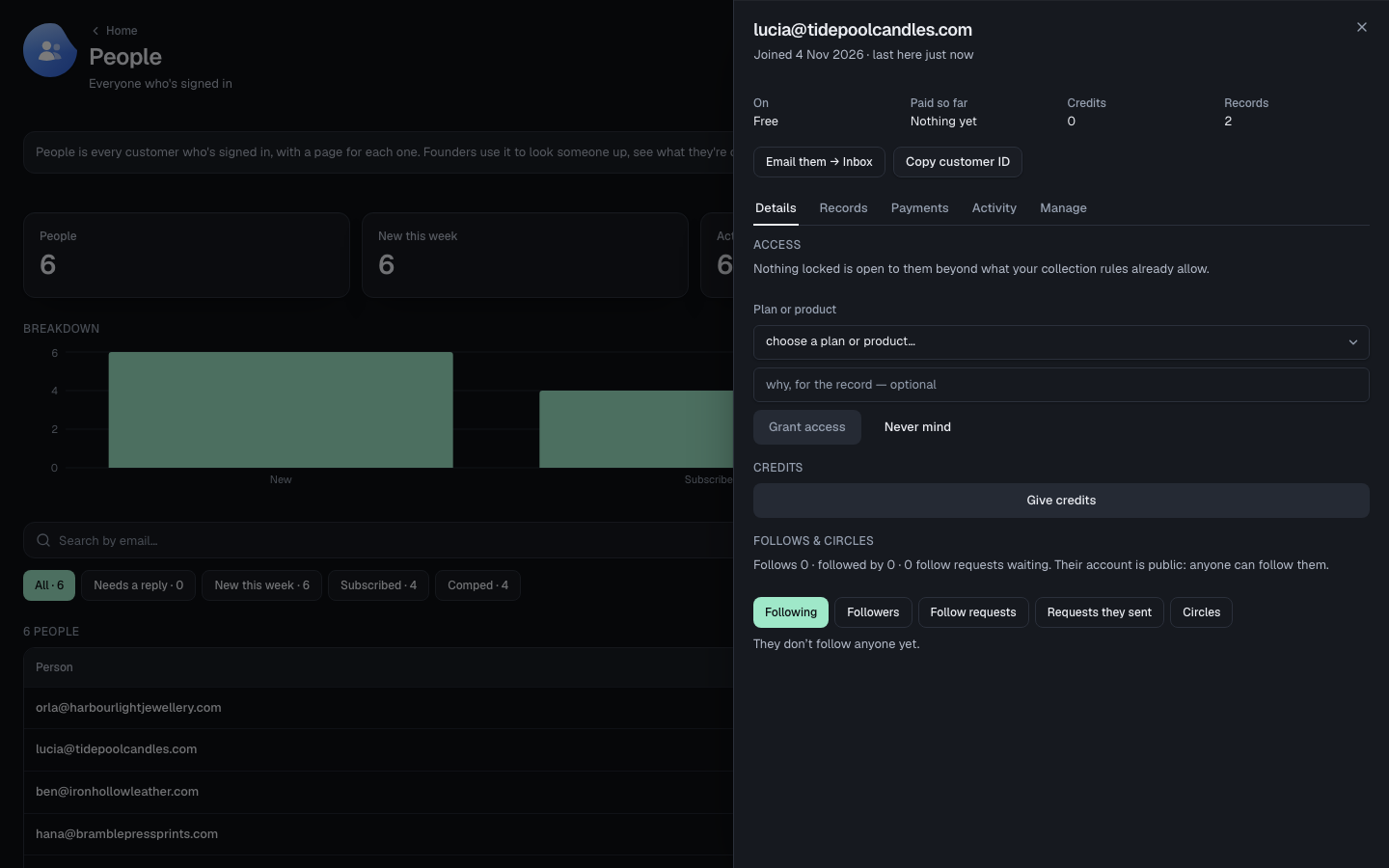
Under Credits, choose Give credits, enter how many and why — the reason is kept on their record.
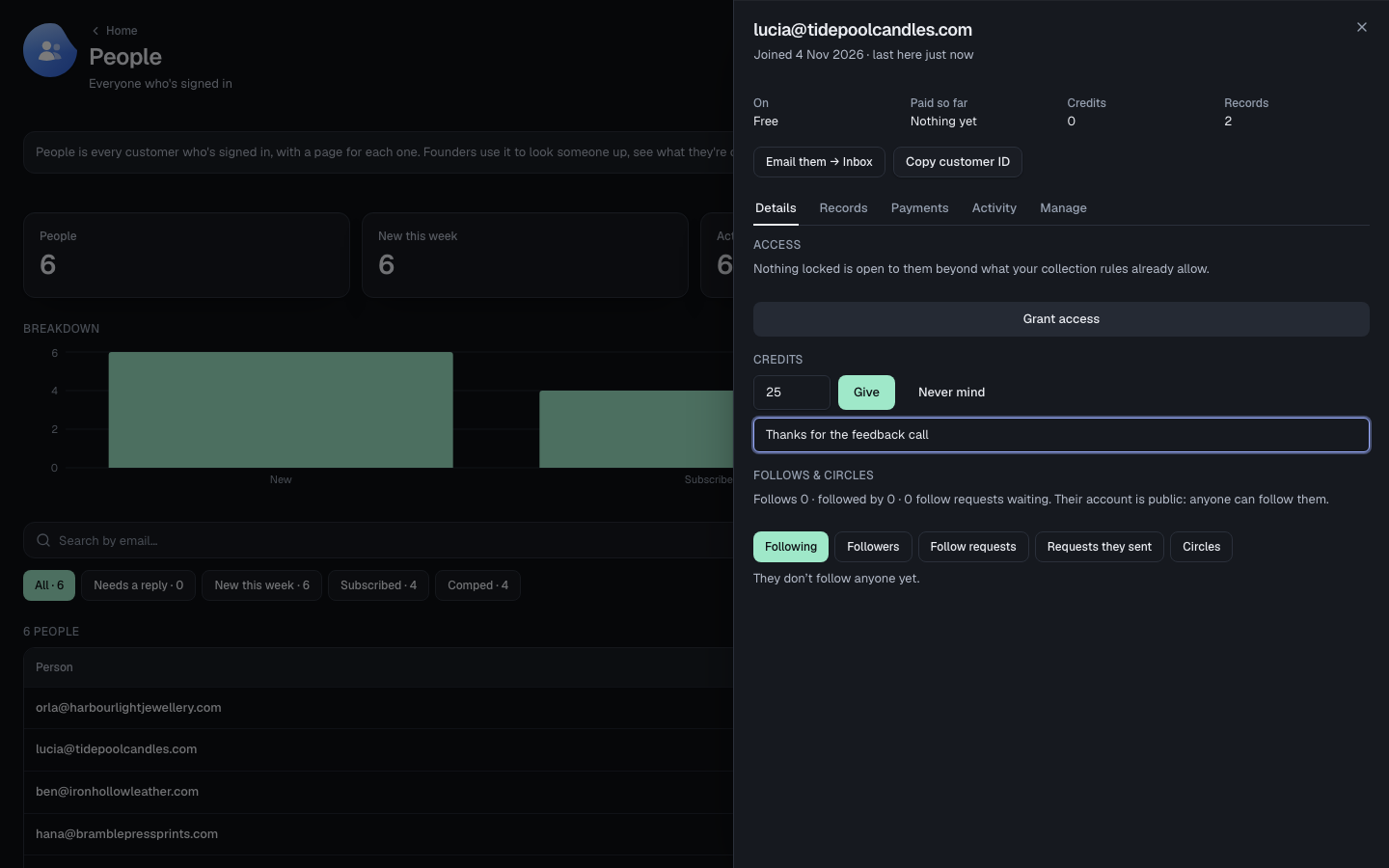
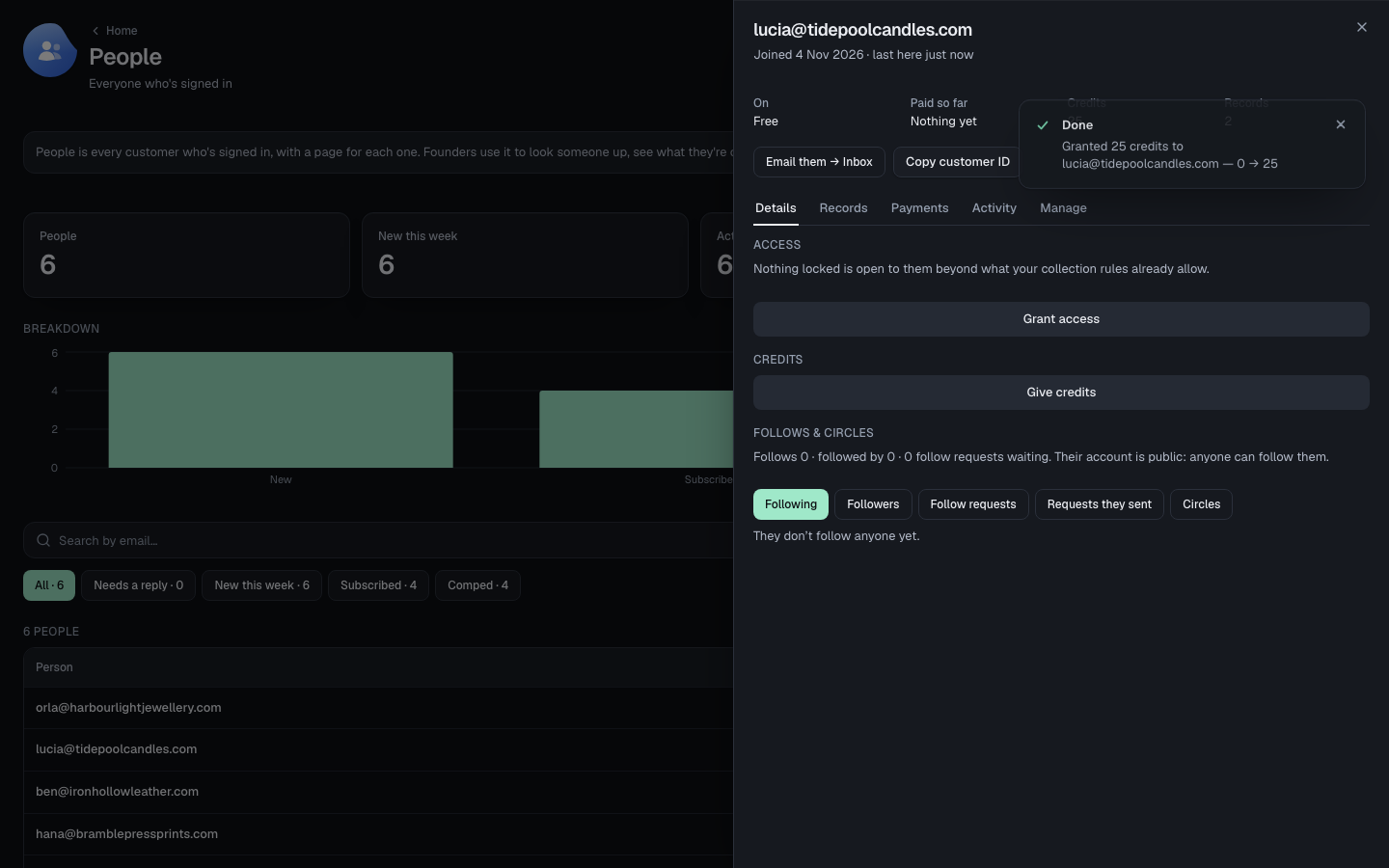
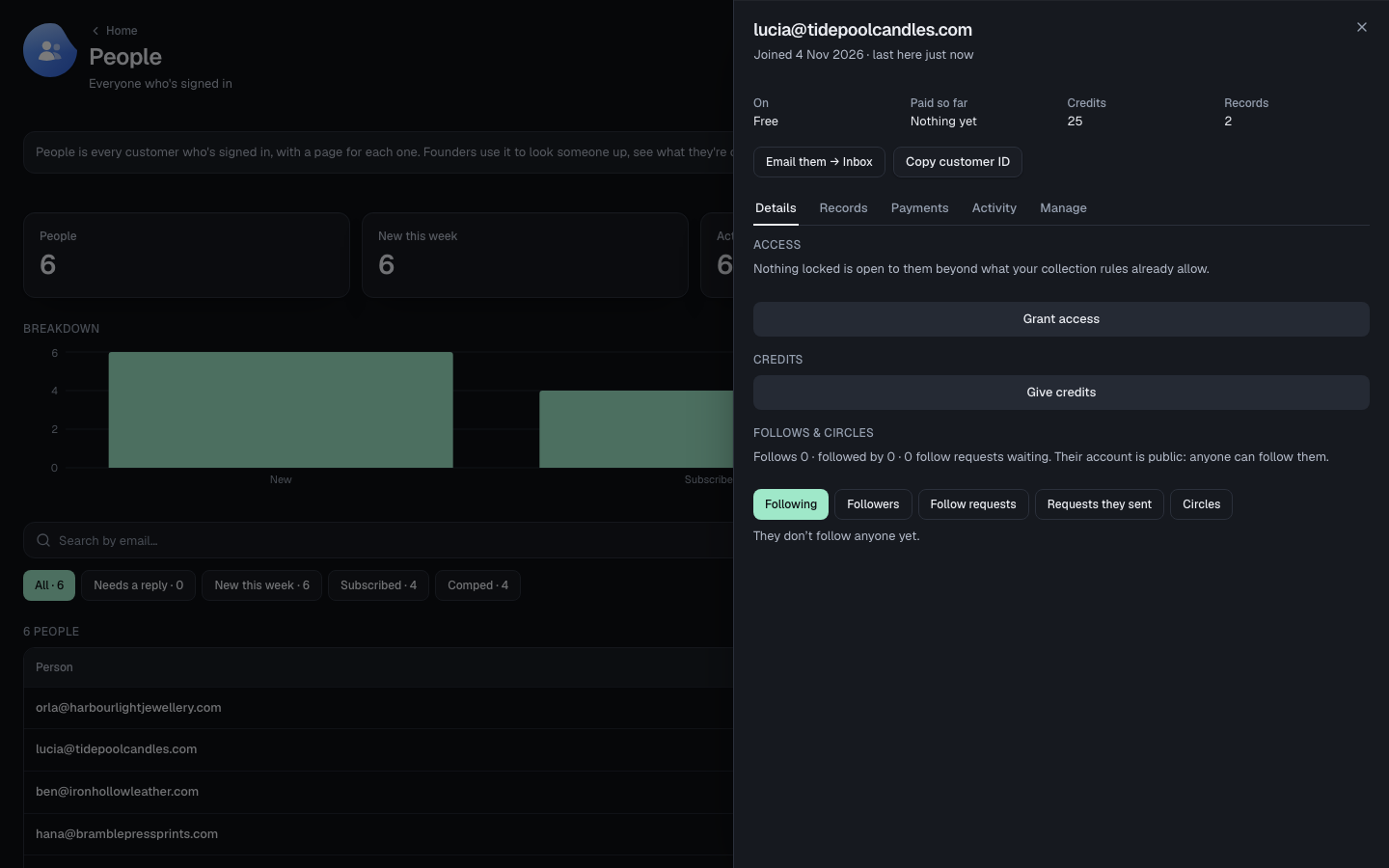
Choose Give. Their balance updates straight away, and the reason is kept on their record.
Follows & circles shows who they follow and who follows them back, if your app has circles.
Payments
For someone not on a plan, open Payments, choose Comp a plan and pick which one — this gives it to them without payment.
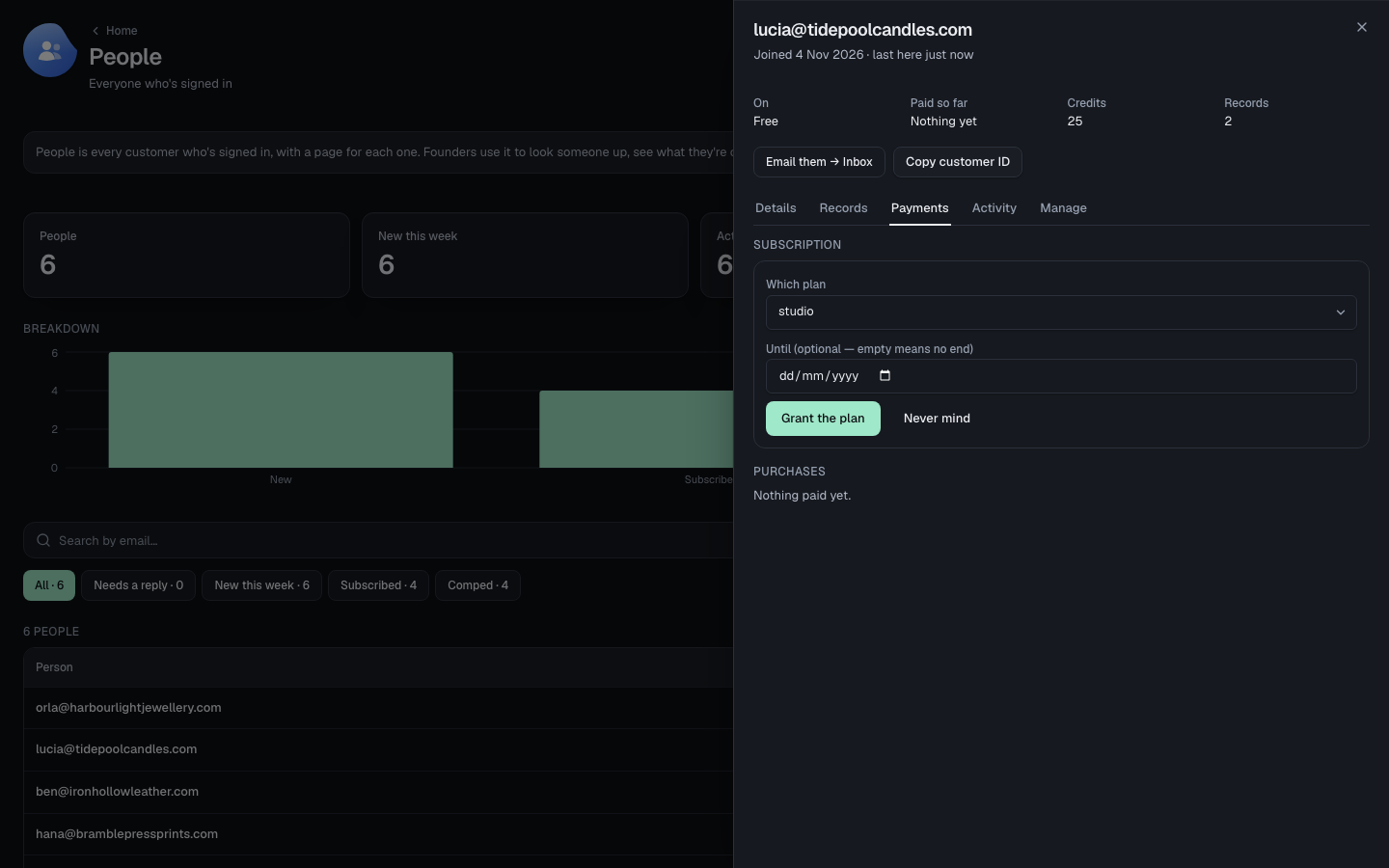
Choose Grant the plan. It becomes a subscription like any other, and ends the same way.
For someone already on a plan, Payments shows the subscription itself — the plan, its status, and how they pay — and everything they've bought.
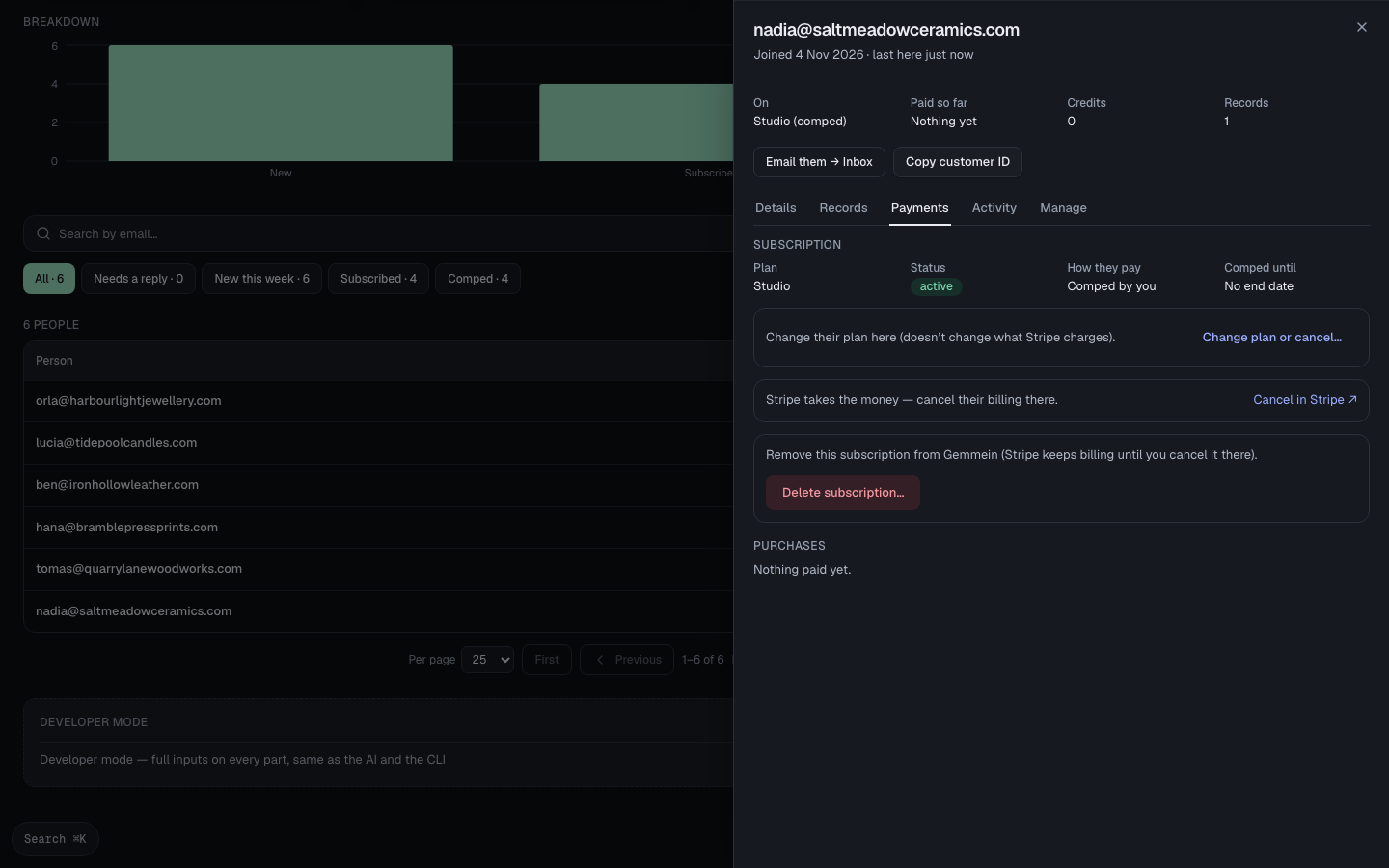
Choose Change plan or cancel… to change their plan or status by hand. This doesn't change what Stripe charges.
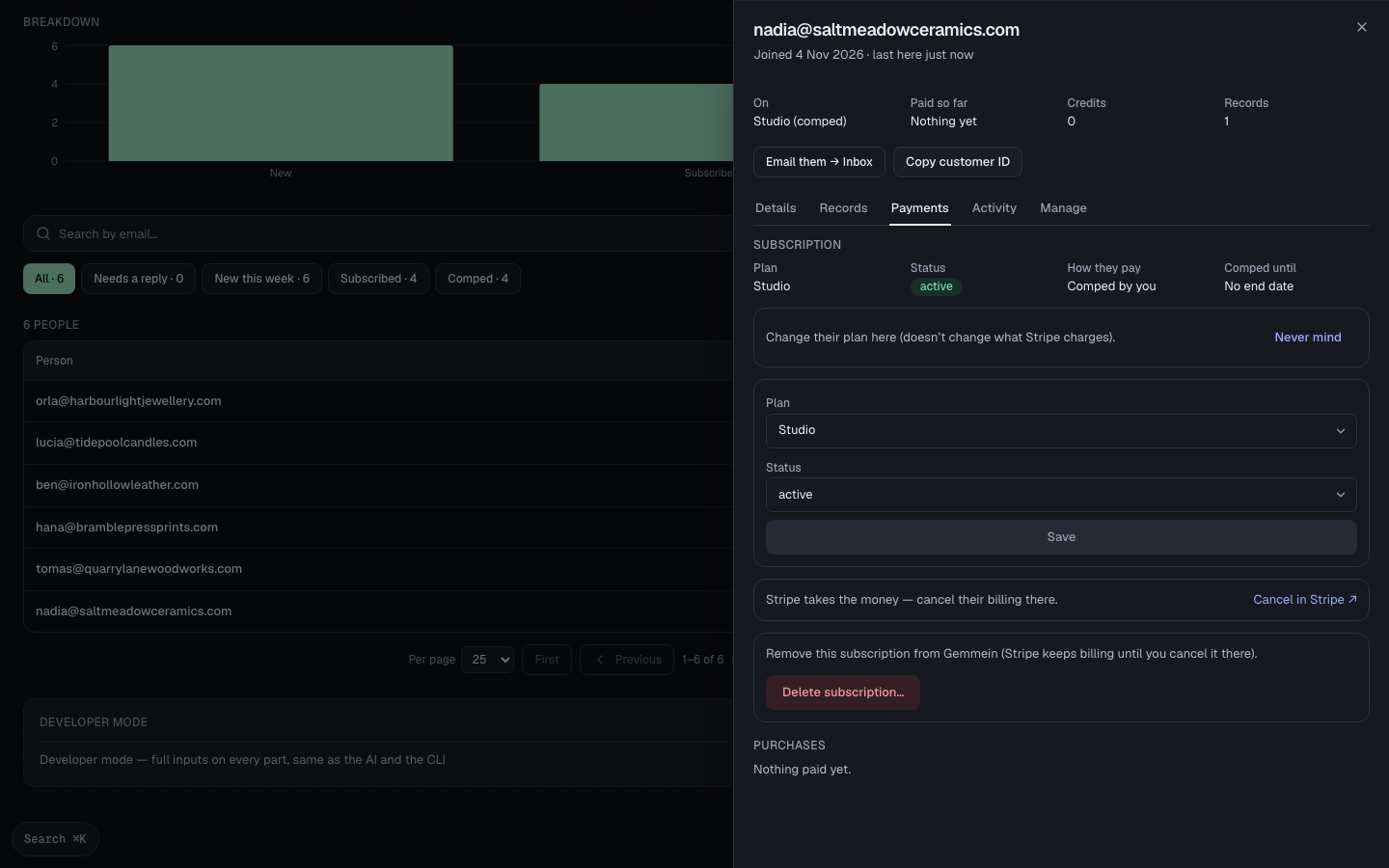
Stripe takes the money, so cancel their billing there — nothing here moves a payment.
Activity
Activity shows their sign-ins and AI activity, newest first.
Manage
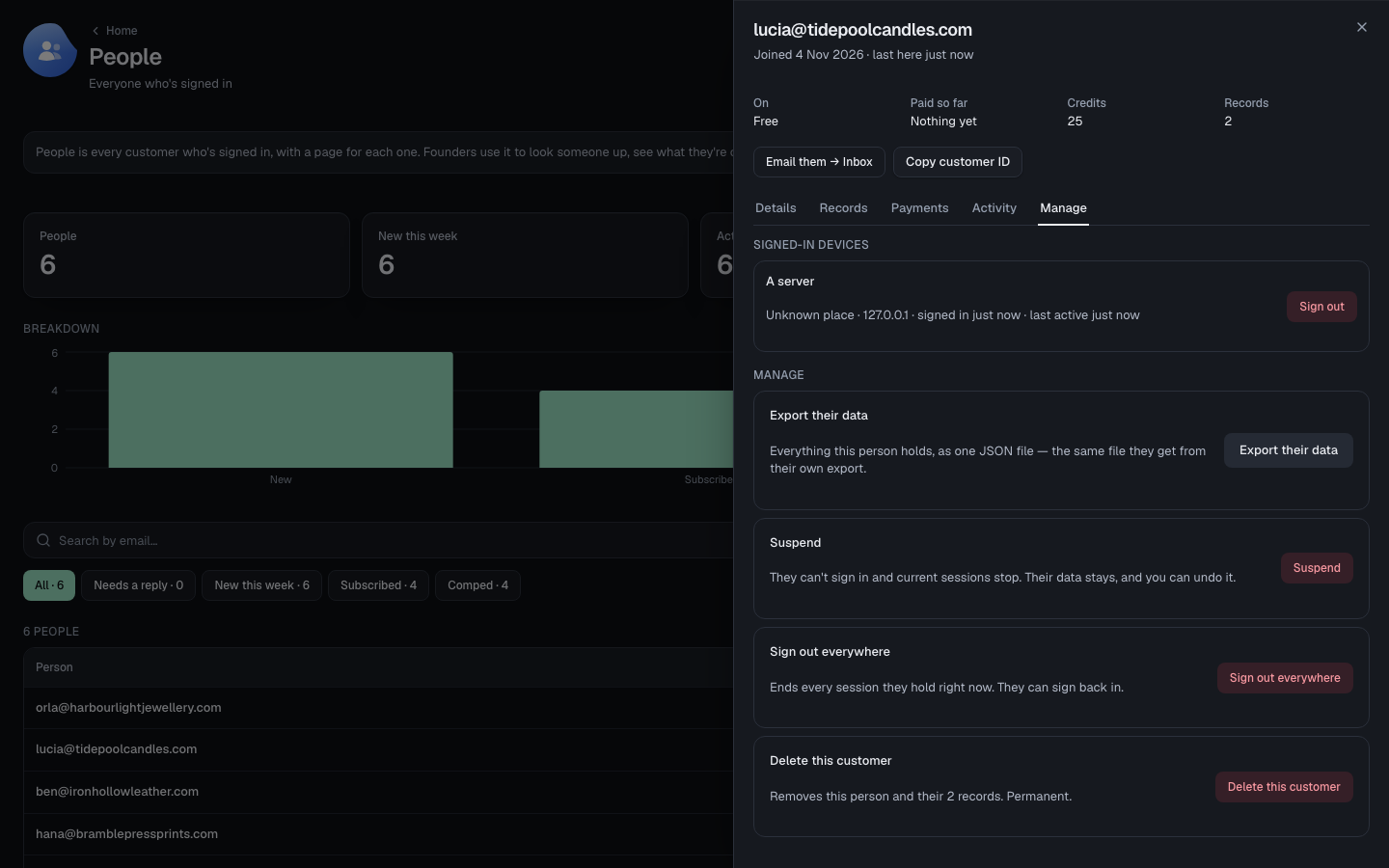
Manage lists their signed-in devices and what you can do to their account. Anything that can't be undone asks you to confirm first.
Errors
Between 1 and 100,000 credits per grant.
One grant can't hand out more than the most a comp is allowed to give — a typo shouldn't be able to give away the business.
How credits are given, held and spent: Credits.
Thanks for telling us.
Thanks for telling us.
Last updated